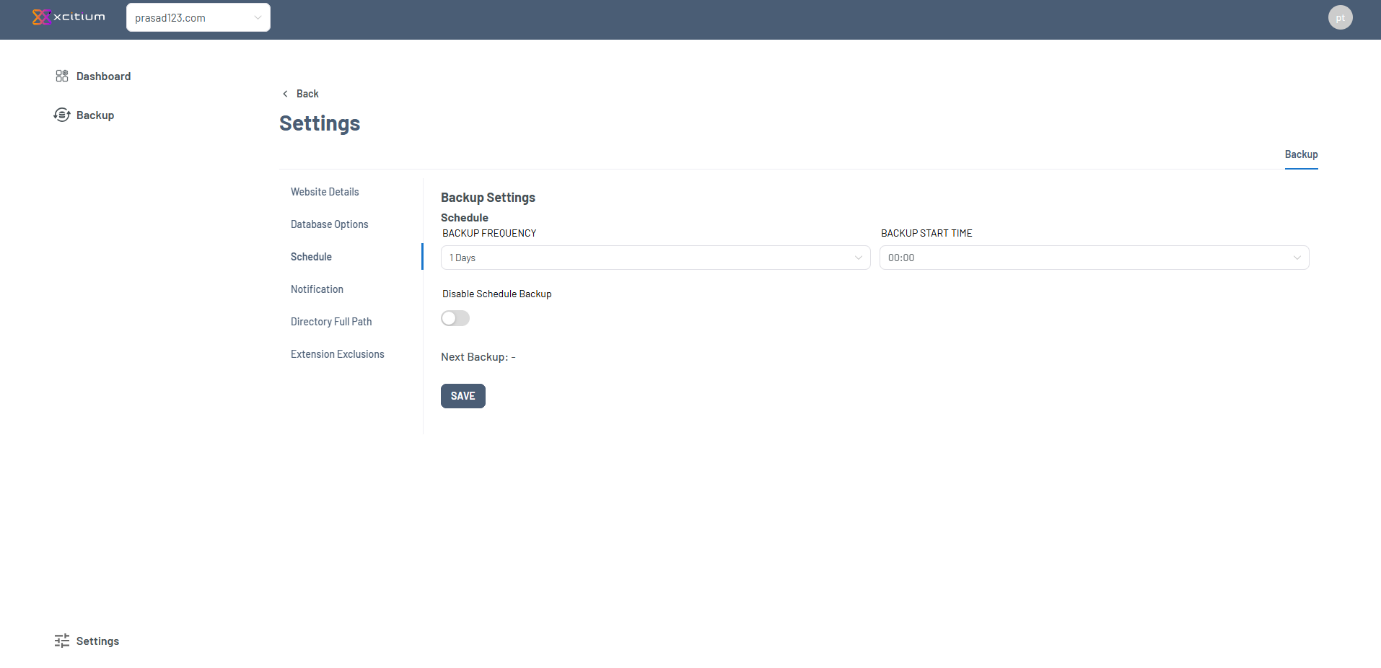
How to Set Up Website and Database Backup in Xcitium
Xcitium Backup allows you to back up both your website files and your website database. To complete the setup, configure the Website Details first, then set up the Database Options.
1. Website Backup Setup
The Website Details screen is where you connect your website files to Xcitium Backup.
Steps
- Go to Backup > Settings > Website Details.
- Confirm the Website URL is correct.
Example: yourdomain.com - Select the Connection Type.
Example: FTP - Enter the Username for your FTP account.
- Enter the Password for your FTP account.
- Enter the Hostname.
Example: ftp.yourdomain.com or yourdomain.com - Confirm the Port.
For FTP, the default port is usually 21. - Enter the Root Directory.
Example: /public_html, public_html, or / - Click Test Connection to check whether Xcitium can connect to your website files.
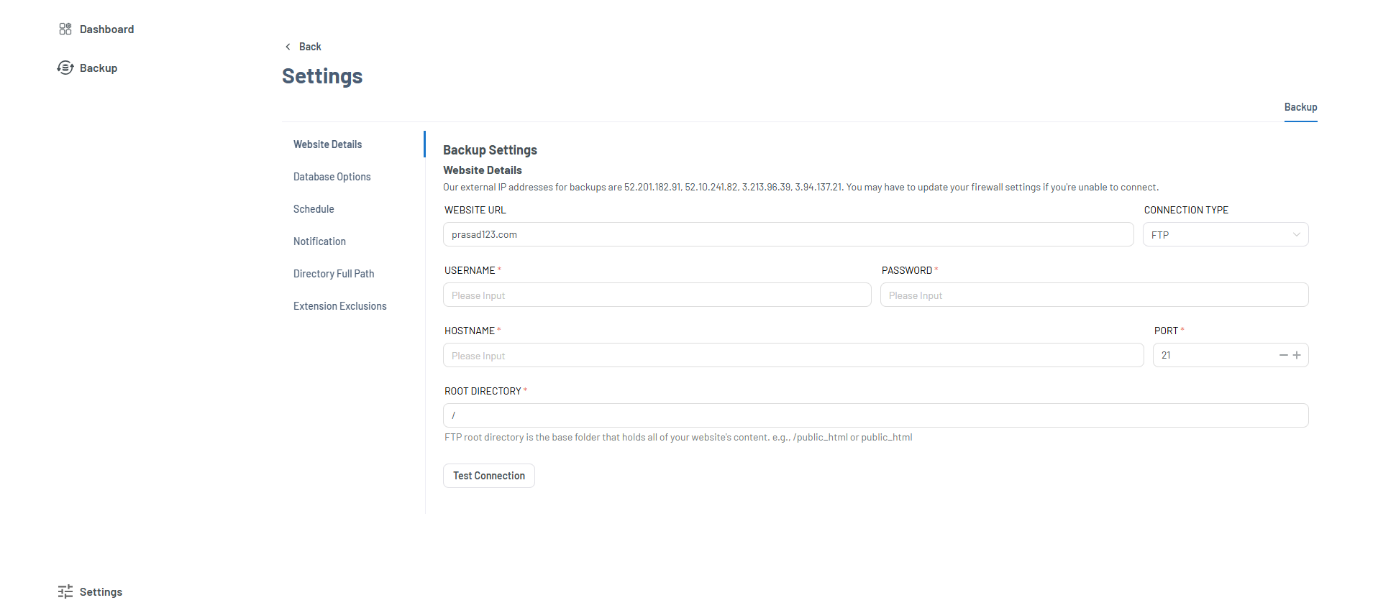
What You Can Do Here
FieldPurpose
Website URLShows the website being backed up
Connection TypeSelects how Xcitium connects to your website
UsernameFTP username used for backup access
PasswordFTP password used for backup access
HostnameFTP server address
PortFTP connection port
Root DirectoryFolder path containing your website files
Test ConnectionChecks whether the connection works
2. Database Backup Setup
The Database Options screen is where you connect your website database to Xcitium Backup.
Steps
- Go to Backup > Settings > Database Options.
- Select the Database Type.
Example: MySQL - Enter the Database Host.
- Confirm the Port.
For MySQL, the default port is usually 3306. - Enter the Database Username.
- Enter the Database Password.
- Enter the Database Name.
- Enable SSH Mode only if your database requires an SSH connection.
- Click Test Connection to check whether Xcitium can connect to your database.
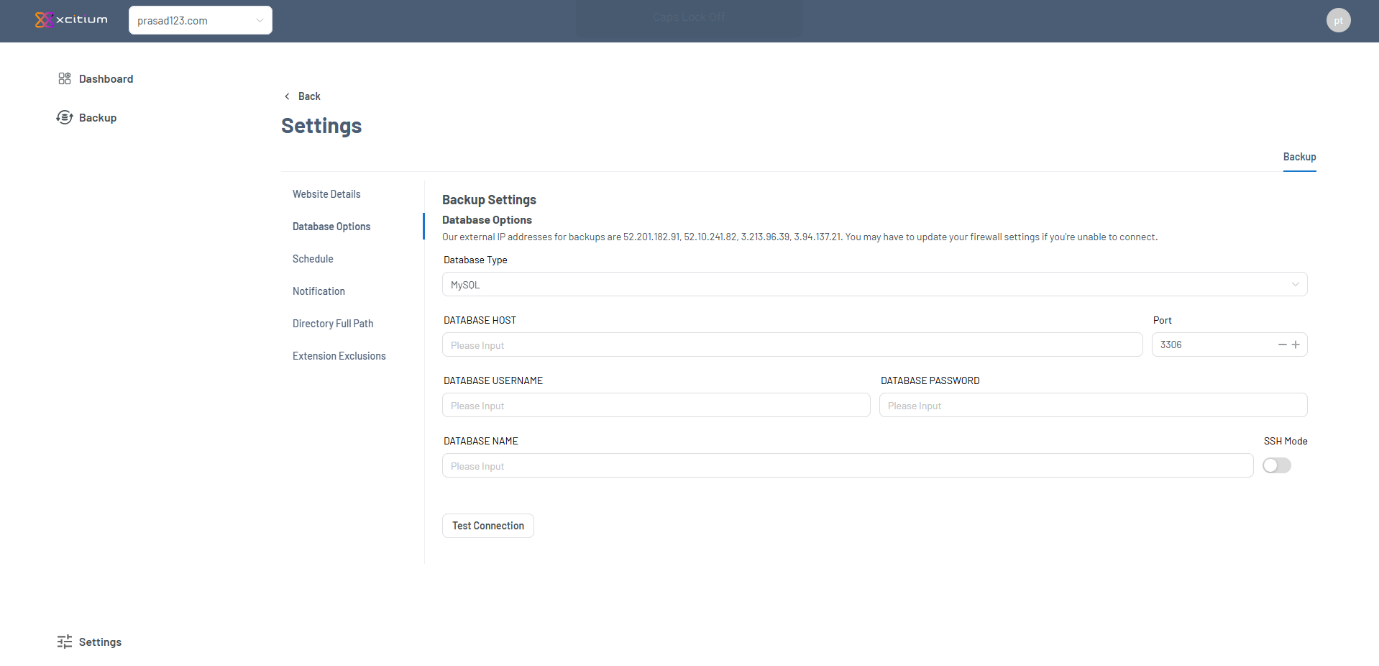
What You Can Do Here
FieldPurpose
Database TypeSelects the database platform
Database HostDefines where the database is hosted
PortDatabase connection port
Database UsernameUsername used to access the database
Database PasswordPassword used to access the database
Database NameName of the database to be backed up
SSH ModeEnables SSH connection if required
Test ConnectionChecks whether the database connection works
3. Backup Frequency Setup
The Schedule screen lets you choose how often Xcitium Backup runs automated backups and what time the backup should start.
How to Set Backup Frequency
- Go to Backup > Settings > Schedule.
- Select the Backup Frequency.
Example: 1 Days means the backup will run once every day. - Select the Backup Start Time.
Example: 00:00 means the backup will start at midnight. - Keep Disable Schedule Backup turned off if you want automatic backups to continue.
- Check the Next Backup field to see when the next scheduled backup will run.
- Click Save to apply the schedule.